
You need your Chase transactions in a spreadsheet and you've spotted two routes: a Chase CSV export of recent activity, or the monthly PDF statement. Use the CSV for quick, recent sorting and the PDF whenever the numbers have to match what the bank issued. If you go the PDF route, you can convert your Chase statement to Excel in a couple of minutes.
Quick answer: Pick the CSV export for budgeting or categorizing the last two years of activity on a computer. Pick the PDF statement for a lender or an accountant, and for taxes, reconciling or anything older than two years. The statement is Chase's official record and has fixed opening and closing balances you can check against.
On this page
- What's the real difference between the two files?
- How do you get a Chase CSV export?
- When is the CSV export the better choice?
- When should you use the PDF statement instead?
- Why don't my CSV totals match my Chase statement?
- Common mistake: stitching exports together for a year-end file
- Which file works best for Excel, QuickBooks or Quicken?
- FAQ
- Related Chase guides
What's the real difference between the two files?
The CSV is a list of recent transactions. The PDF is a closed record of one statement period with a starting balance, an ending balance and every completed transaction in between.
That one difference drives everything else. A transaction list is flexible, but nothing ties it to a bank-issued total. A statement is rigid, and that rigidity is exactly why bookkeepers and lenders trust it.
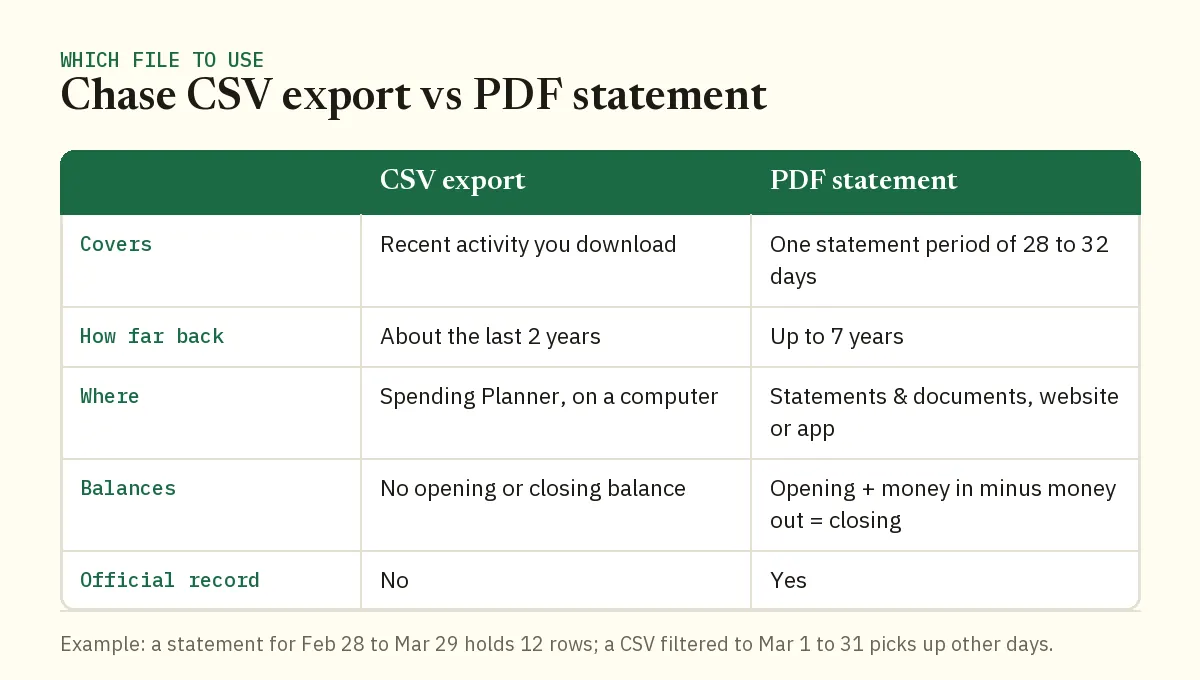
| Question | CSV export | PDF statement |
|---|---|---|
| What period does it cover? | Transactions from about the last two years | One statement period of 28 to 32 days |
| Where do you get it? | Chase's Spending Planner on a computer | Statements & documents, on the website or the app |
| Will a lender or auditor accept it? | Rarely, it isn't a bank-issued document | Yes, it's the official record |
| Can you prove it's complete? | Not on its own | Yes, opening plus activity must equal closing |
| Ready for a spreadsheet? | Yes, it opens in Excel | Needs converting first |
How do you get a Chase CSV export?
You get it from Chase's Spending Planner, and only on a computer. Chase's own page on the Spending Planner download options lists four formats covering the last two years.
On chase.com
- Sign in and find the "Manage Your Spending Plan" section on the Plan, Track, or Manage dashboard.
- Open the Spending Summary tab.
- Scroll past the category breakdown to the download options.
- Choose the spreadsheet (CSV) format and save the file.
The same menu offers Quicken Web Connect (QFX), QIF and QuickBooks Web Connect (QBO). Ignore those if Excel is your goal. They're built for import into accounting software, not for reading.
In the Chase Mobile app
The app doesn't give you a CSV. Under "Track your spending habits" you can download a PDF of your transactions for the last calendar year, and that's it. If you're on your phone and need a spreadsheet, the statement PDF is your route.
When is the CSV export the better choice?
The CSV wins when the work is informal, recent and for your eyes only. Think budgeting, tagging expenses or finding one payment fast.
- Sorting by category. Drop the file into Excel, add a column for categories and filter. No converting needed.
- Finding a charge. Need every payment to one vendor since January? Filter the description column.
- A custom window. Filter the file to the first half of a quarter or a single week. A statement can't do that.
One tip from experience: name the file with its date range the moment you save it. Downloads often get generic names, and a week later nobody remembers which months a file holds.
When should you use the PDF statement instead?
Use the statement any time someone else will rely on the numbers. Chase's deposit account agreement calls the monthly statement the official record of your account, and that's the standard most professionals apply.
- Loan or mortgage paperwork. The CFPB's loan application checklist asks for your two most recent bank statements.
- Your accountant or tax preparer. They'll want to tie your books to the bank's closing balance for each month.
- Reconciling. You can only reconcile against a fixed ending balance on a fixed date, and only the statement gives you one.
- Anything older than two years. The export window stops there. Statements go back up to 7 years for many accounts, depending on account type, as Chase explains on its paperless statements page.
- Disputes. Chase's deposit account agreement counts the deadline for reporting an error from the first statement that shows it.
Not sure where the PDFs live? Our walkthrough on downloading Chase statements from the website or app covers both routes.
Why don't my CSV totals match my Chase statement?
Almost always because the dates are different. Chase's deposit account agreement says a statement period won't be more than 32 days or less than 28, so it often doesn't line up with the calendar month. Most people filter their CSV to the 1st through the 31st.
Worked example: Demo Company LLC in March
Demo Company LLC's March statement runs February 28, 2026 through March 29, 2026. It opens at $8,420.15 and lists 12 transactions: $6,250.00 in and $4,987.60 out. It closes at $9,682.55.
The owner filters the CSV to March 1 through March 31. All 12 statement rows are there, from the $2,140.00 Stripe transfer on March 2 to the $2,350.00 Stripe transfer on March 27. So far, so good.
But the filter also catches anything that posted on March 30 or 31, and those two days belong to the April statement. One card charge on March 31 is enough to push the CSV's money out above $4,987.60. The same thing happens in reverse in a month whose statement starts before the 1st.
Nothing is wrong with either file. They just cover different days.
The fix: filter the CSV to exactly the dates printed on the statement. Or skip the guessing and work from the statement itself, so the 12 rows and both balances line up by design.
Two smaller causes are worth checking too. Chase's guide to bank statements says pending transactions may be left off a statement. Some accounts that share an owner can also be combined on one statement, so a single PDF can hold rows from two accounts.
Common mistake: stitching exports together for a year-end file
Here's one I see every January. Someone downloads activity several times during the year, pastes the files into one sheet and sends it to their accountant. The downloads overlap, so a handful of payments appear twice and the year's expenses come out too high.
Nothing in the pasted sheet ties the chunks to the bank's figures, so the duplicates hide. The fix is to build the year from the 12 statements instead.
Each one has an opening and a closing balance. If January's closing balance equals February's opening balance, and so on through December, you know no month is missing or doubled.
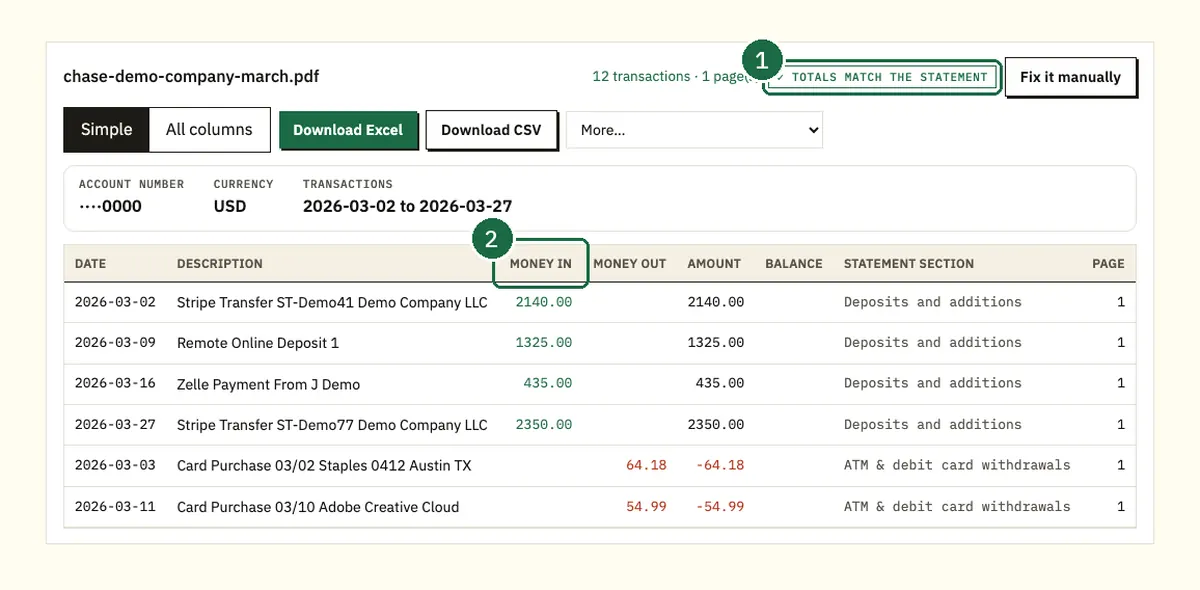
That's the check our bank statement converter runs for you on every PDF.
It confirms that opening plus money in minus money out equals the closing balance. For the March example, $8,420.15 plus $6,250.00 minus $4,987.60 gives $9,682.55. The preview then reads "Totals match the statement".
If the totals are off, it tells you by how much and marks the row to check.
Which file works best for Excel, QuickBooks or Quicken?
It depends on where the data is going next and how far back you need it.
| Where it's going | Last two years | Older than two years |
|---|---|---|
| Excel or Google Sheets | CSV export, or a converted statement if totals matter | Converted PDF statement |
| QuickBooks Online | QBO or CSV export from Chase | Converted PDF statement as CSV or QBO |
| Quicken | QFX export from Chase | Converted PDF statement as QIF or OFX |
| Lender or accountant | Original PDF statements | Original PDF statements |
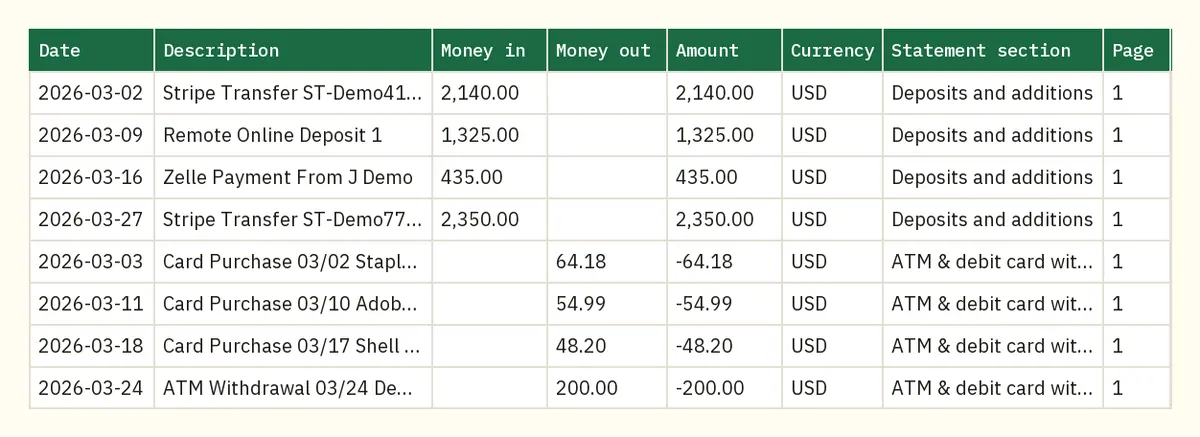
A converted statement also carries more detail than a raw export:
- The account number on every row, so mixed files stay sorted.
- Separate money in and money out columns, plus a signed amount, a balance and the currency.
- The statement section and the page each row came from.
- A Summary sheet with the totals for each statement.
Excel and CSV downloads are free: 3 pages a day without an account and 15 with a free account. QuickBooks (QBO), OFX and QIF files come with the paid plans.
If QuickBooks is the destination, our guide on importing Chase transactions into QuickBooks Online walks through the upload and the reconciliation.
FAQ
How far back can I download transactions?
Chase says the Spending Planner download covers the last two years on a computer. For anything older, use the PDF statements, which go back up to 7 years for many accounts.
Can I download a Chase CSV on my phone?
No. In the Chase Mobile app you can download a PDF of the last calendar year's transactions, but not a CSV. Use a computer for the CSV, or convert a statement PDF from your phone.
Will a lender accept a CSV instead of statements?
Plan on sending statements. The CFPB's loan application checklist lists bank statements, and Chase calls the monthly statement the official record of your account. Send the original PDFs and keep your own copies.
Why does my statement start on the 28th?
Chase statement periods run between 28 and 32 days and don't have to match the calendar month. Check the period printed on the statement before you compare it with anything else.
Should I pick CSV or QBO for QuickBooks?
Intuit suggests QBO first because its fields come already labelled. A CSV works too and is easier to check in Excel before you upload it.
Related Chase guides
Not affiliated with JPMorgan Chase. Chase is a trademark of its owner.