
Your Chase account holds the transactions and QuickBooks Online needs them, ideally without typing a single row. You can import Chase into QuickBooks three ways: a live bank feed, a QBO or CSV file downloaded from Chase, or a file made from your PDF statements. For months the feed and Chase's download can't reach, convert your Chase statement to Excel or CSV first and upload that.
Quick answer: In QuickBooks, open Bank transactions under Accounting and connect Chase for ongoing activity. For the last two years, download a QBO file from Chase's Spending Planner and use Upload from file. For older months, convert the PDF statements to CSV or QBO, upload them and reconcile each month against the statement.
On this page
- What are the ways to import Chase into QuickBooks?
- How do you connect Chase to QuickBooks with a bank feed?
- How do you upload a Chase QBO or CSV file?
- What if you need Chase transactions older than two years?
- Worked example: one month for Demo Company LLC
- Common mistake: the feed and a file both bring in the same days
- Does a Chase credit card import differently?
- FAQ
- Related Chase guides
What are the ways to import Chase into QuickBooks?
There are three, and most businesses end up using two of them. The feed handles today, and files fill in the past.
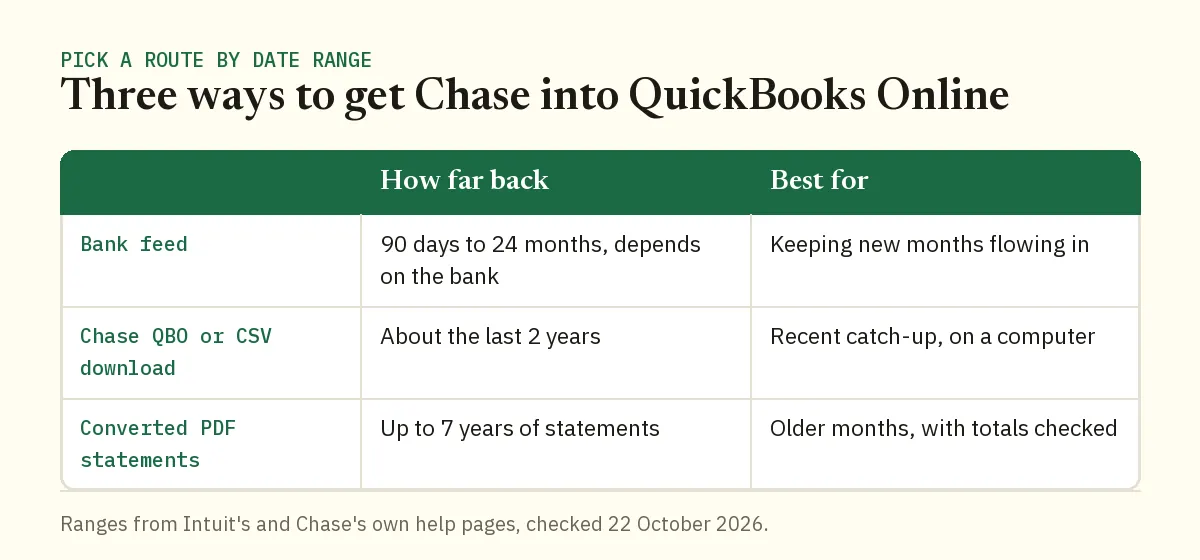
| Route | How far back | Best for |
|---|---|---|
| Bank feed (connect Chase) | Varies by bank, from 90 days to 24 months | Daily activity from now on |
| QBO or CSV file from Chase | About the last two years | Recent months the feed missed |
| Converted PDF statement | Any statement you can download, up to 7 years for many accounts | Catch-up work and older years |
Pick the route by the date you need to start from. Work backward from the feed's earliest date, and use files only for the gap.
How do you connect Chase to QuickBooks with a bank feed?
You connect it from the Bank transactions page, and QuickBooks then downloads new Chase activity on its own. Intuit's guide to connecting bank and credit card accounts has the full walkthrough. In short:
- Go to All apps, then Accounting, then Bank transactions.
- Select Connect account, or Link account if you've connected one before.
- Search for Chase, sign in and complete Chase's security checks.
- Tick the accounts you want, such as business checking and a card.
- Set the start date in the date range dropdown, then select Connect.
That start date is the step most people miss. QuickBooks defaults to the beginning of the year. If the account already has transactions in QuickBooks, pick the day after the most recent one instead, or you'll pull in duplicates.
One Chase-specific detail from Intuit's guide: Chase customers can connect one bank account to more than one QuickBooks Online account. That helps if you keep separate books for two companies paid from the same checking account.
New transactions land in the For review tab. Intuit's matching guide says they don't affect your books until you match or categorize them.
How do you upload a Chase QBO or CSV file?
Download the file from Chase on a computer, then use Upload from file in QuickBooks.
If you're unsure which Chase file to start from, our comparison of Chase's CSV download and the PDF statement explains the trade-offs. Chase's Spending Planner exports the last two years as CSV or as QuickBooks Web Connect (QBO). The Chase Mobile app only offers a PDF, so this part needs a desktop.
Download from Chase
- Sign in on chase.com and open Manage Your Spending Plan.
- Go to the Spending Summary tab and scroll down to the download options.
- Choose QuickBooks Web Connect (QBO) and save the file.
Upload to QuickBooks
- On Bank transactions, open the Link account dropdown and choose Upload from file.
- Select the Chase file and pick the matching QuickBooks account.
- Check the review screen, tick the rows you want and finish.
Choose QBO over CSV when you can. Intuit suggests it first, and the fields arrive already labelled, so there's no column mapping. If you're stuck with a CSV, our QuickBooks bank import guide covers the column layouts and the common error messages.
Watch the size on a busy account. Each upload is capped at 1,000 lines and 350 KB, so a full year of daily card sales may need splitting. Upload one quarter at a time, in date order.
What if you need Chase transactions older than two years?
Use the PDF statements. Chase keeps up to 7 years online for many accounts, but neither the feed nor the Spending Planner reaches that far, so the statements are the only source.
To check every row before it reaches QuickBooks, turn each statement into a CSV or QBO file first. Upload the PDFs to our bank statement converter and it reads every row. Excel and CSV are free, and QBO comes with the paid plans.
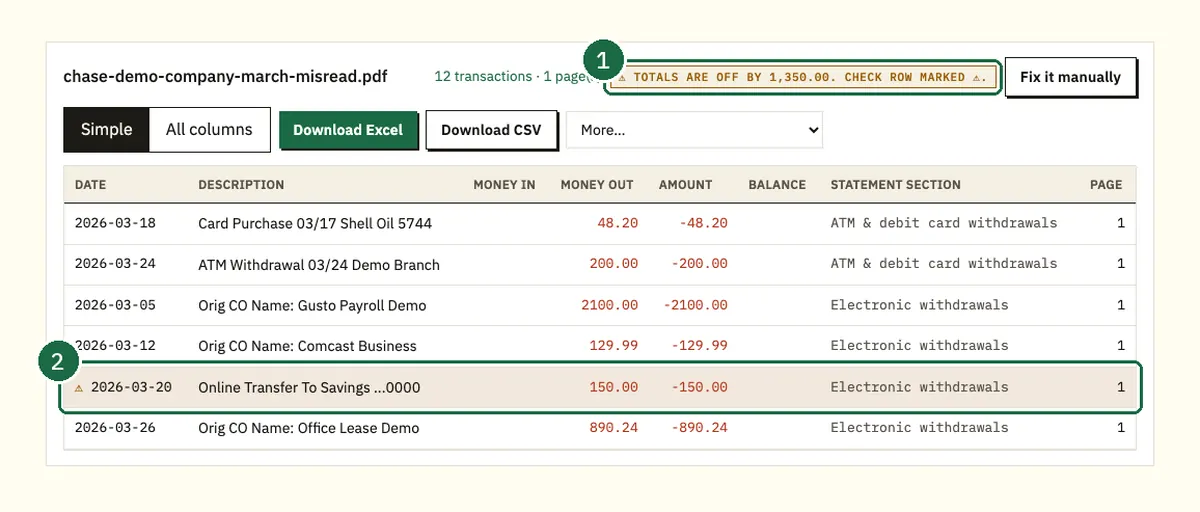
Before you download, look at the balance check.
The converter adds every row to the opening balance and compares the result with the closing balance Chase printed. If they differ, it shows the gap and marks the row most likely to blame. Fix it there, and it never reaches your books.
For a CSV upload, keep just three columns: Date, Description and Amount. The Excel version also carries the balance, statement section and page, which are useful for your own review. Delete them in the copy you upload.
Need the PDFs first? See where Chase keeps statement PDFs online and in the app.
Worked example: one month for Demo Company LLC
Demo Company LLC connected its Chase checking feed in April and set the start date to March 30, the day after its March statement closed. Its accountant now wants the first quarter in QuickBooks too, and those statements sit before the feed's start date.
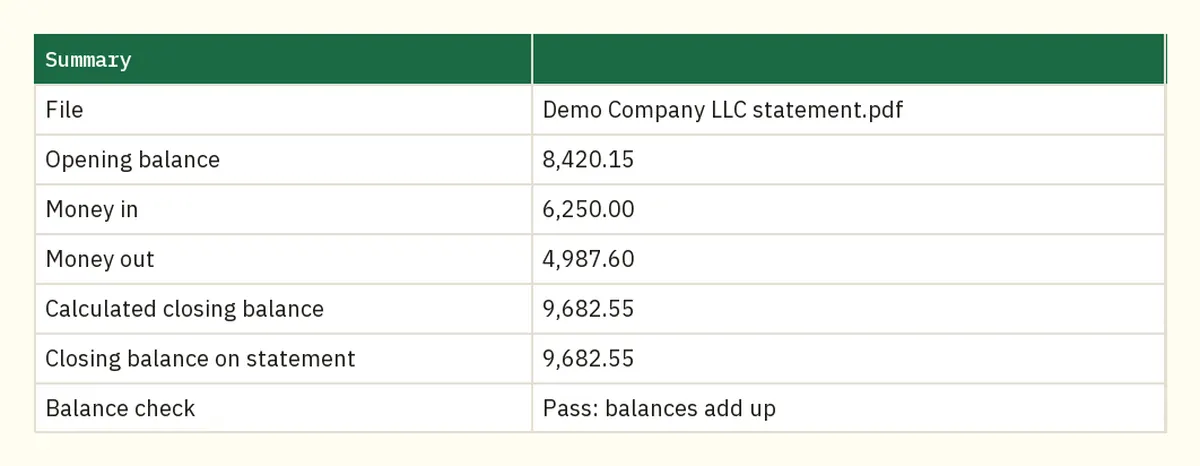
Take March. The statement runs February 28, 2026 through March 29, 2026 and lists 12 transactions. It opens at $8,420.15, shows $6,250.00 in and $4,987.60 out, and closes at $9,682.55.
- Convert the March PDF. On the first pass the badge read "Totals are off by 1,350.00", and the marked row was the $1,500.00 Online Transfer To Savings on March 20, read as 150.00. Correct it and the totals match.
- Download the CSV and trim it to Date, Description and Amount.
- Upload it to the Chase checking account in QuickBooks. The review screen should show 12 rows.
- Match or categorize all 12 in For review.
- Reconcile: enter March 29 as the ending date and $9,682.55 as the ending balance.
Tick the 12 transactions and the difference should read $0.00. If it doesn't, compare the row count first. A missing or doubled row is far more common than a wrong amount.
Before reconciling the first statement of the quarter, check that the opening balance in QuickBooks equals the one printed on it. After that, each month should open where the last one closed, so March starts at $8,420.15. Intuit's steps to reconcile an account in QuickBooks Online show where to confirm it.
Common mistake: the feed and a file both bring in the same days
This is the duplicate problem I fix most often. Someone connects the feed with its default start date, then uploads a Chase file covering the same weeks. Every payment in the overlap now appears twice, and the reconciliation won't balance.
The fix has two parts:
- Before importing: note the earliest date the feed brought in. End your file the day before it.
- After importing: in For review, match each row to the existing record instead of adding it. If a record is already reconciled, Intuit says to exclude the duplicate rather than add it.
A quick test catches it early. Count the rows for one month in QuickBooks and compare that with the statement. Twelve on the statement and fifteen in QuickBooks means something came in twice.
Does a Chase credit card import differently?
The steps are the same, but the destination must be the credit card account in QuickBooks, not checking. Intuit confirms card transactions use the same upload process.
Check the signs on the review screen. Purchases should increase what you owe, and payments should reduce it.
Card with another bank? The steps are the same for a Citi card. Start from the Citibank statement converter guide, then follow getting Citi transactions into QuickBooks.
If every amount looks backward, select reverse all values before you finish. Then reconcile against the card statement's closing balance, the same way you would a checking account.
FAQ
Why won't my Chase bank feed go back further?
Intuit says download timespans vary by bank, from 90 days up to 24 months. For anything earlier, upload a Chase file or a converted statement.
Can I do this from my phone?
Not easily. The Chase Mobile app only exports a PDF, so download the QBO or CSV file on a computer. You can convert a statement PDF from any device and upload the result later.
Should I upload a Chase PDF straight into QuickBooks?
QuickBooks can read PDF statements, though Intuit says some items may be flagged for review by its experts. Converting to CSV or QBO first lets you check every row yourself before it's in your books.
How many months can I upload at once?
As many as fit in 1,000 lines and 350 KB per file. A busy account may need one month per file, so check the row count before you upload.
Do I still need to reconcile after importing?
Yes. Importing only adds the rows. Reconciling against each Chase statement's ending balance is what proves nothing was missed or doubled.
Related Chase guides
Not affiliated with JPMorgan Chase. Chase is a trademark of its owner.