
Halifax keeps 7 years of statements in Online Banking and at least 10 years in its app, all as PDFs. Converting a Halifax bank statement PDF to Excel takes two moves: download the statement, then upload it to our free bank statement converter, which turns each transaction into a dated row and checks every printed balance.
Quick answer: Open your Halifax account, choose Statement options (or Download or print statement in the app) and save the PDF. Upload it in the box above, review the rows and download Excel or CSV. 3 pages a day are free, with no account needed.
On this page
- How to convert your Halifax bank statement PDF to Excel
- Halifax details behind each step
- What Halifax lets you download
- Halifax statement lines and payment codes
- When a Halifax PDF needs checking
- A Halifax payment you don't recognise
- Halifax data in QuickBooks, Xero or Google Sheets
- Your Halifax statements, the Lloyds move and data safety
- Halifax's yearly Statement of Fees
- Paper-free statements, closed accounts and the move to Lloyds
- Asked about Halifax statements
- Lloyds and other UK bank guides
How to convert your Halifax bank statement PDF to Excel
- Download the PDF. In Online Banking: open the account → Statement options → download. In the app: open the account → three-dot menu → Download or print statement.
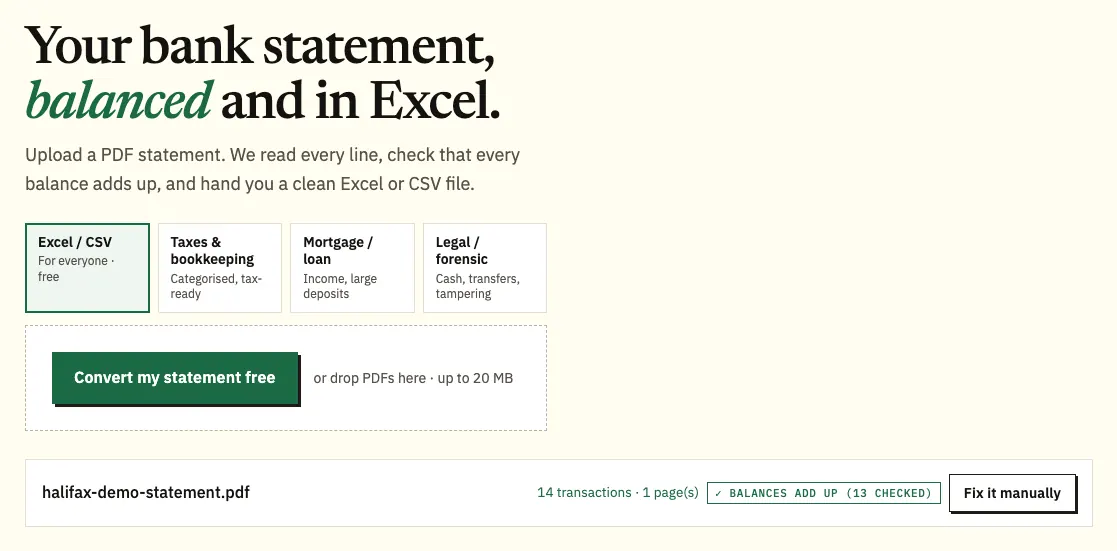
- Upload it here, in the box near the top of this page, or open the full bank statement converter.
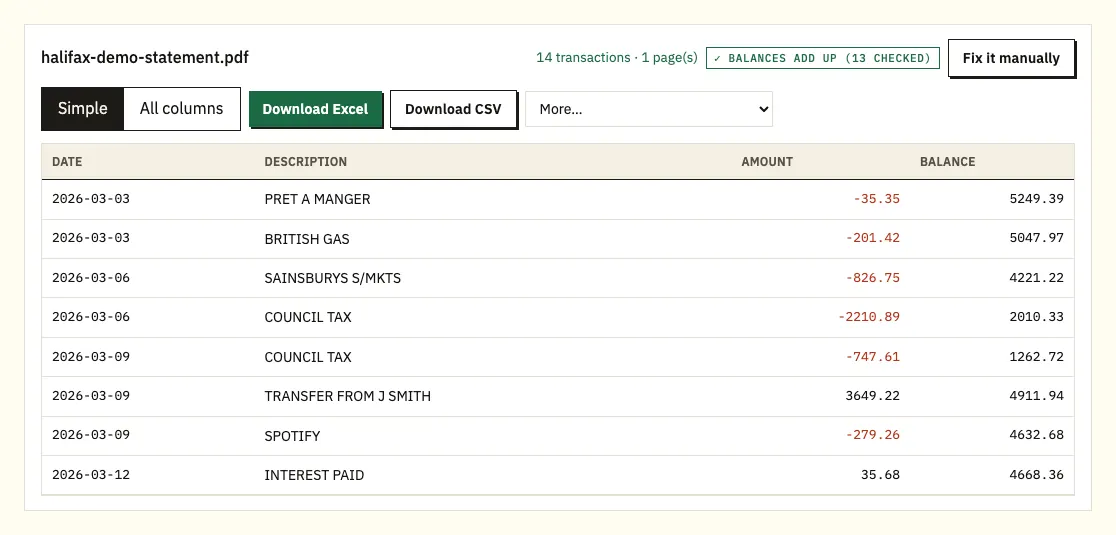
- Review the rows. A ⚠ appears on any balance that doesn't add up.
- Download the workbook as Excel or CSV.
Halifax details behind each step
Website or app
Online Banking holds 7 years of statements, and the app goes further back: at least 10 years. If you need a statement from 8 or 9 years ago, use the app rather than the website. Statement options is also where you print a statement or order a paper copy. Credit card statements work differently: Halifax provides credit card PDFs through the app or by asking in chat. Keep the original PDF rather than a screenshot.
Halifax's help pages say the Halifax brand is changing to Lloyds, and customers will be moved to the Lloyds app and online banking. Menu names may change when that happens, so if you can't find Statement options, check the current help pages.
Uploading
Tap the upload button to pick the Halifax PDF from your files, or drop it on the upload box. Current account and credit card statements can go in together. No account is needed for 3 pages a day; a free account raises that to 15, and our pricing page lists the rest.
Reviewing
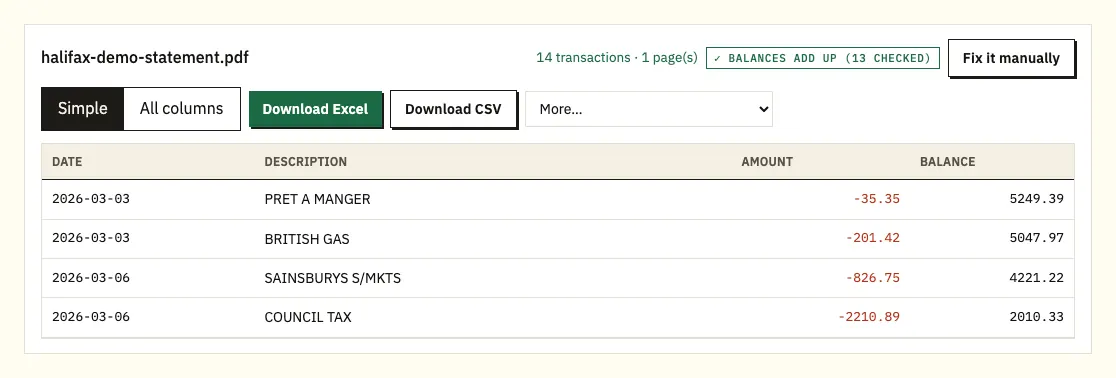
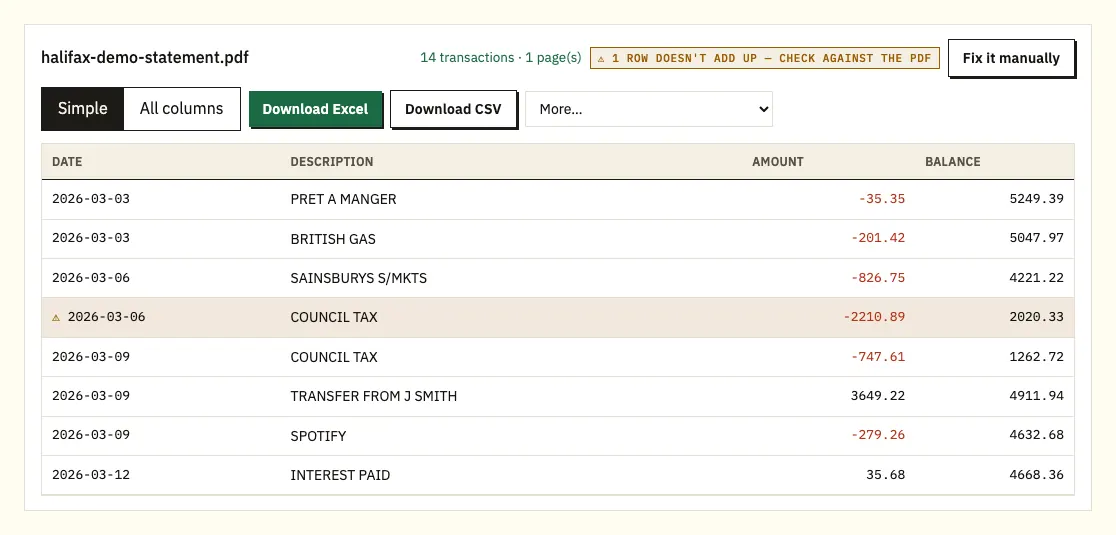
The preview puts each Halifax transaction on a row: date, description with any payment code, amount and balance. Click a flagged row to see where it sits on the PDF.
Downloading
Download Excel to get an .xlsx file, or CSV for bookkeeping software. The More menu on paid plans adds QuickBooks (.qbo), OFX and QIF.
What Halifax lets you download
Halifax's help pages describe printing, downloading and ordering statements, and the download is a PDF. We couldn't confirm a CSV or Excel export for personal accounts on Halifax's own pages, so check the options under Statement options in your account.
What Halifax does offer is a transaction search in Online Banking and the app. You can search by name or amount, filter by month and by money in or out, and select a payment to see more details, including where it was made. That's useful for finding one payment, but it doesn't give you a spreadsheet of the statement.
| Halifax Online Banking and app | Converting the PDF statement | |
|---|---|---|
| What you get | PDF statements and a searchable transaction list | Every row on the statement in a spreadsheet |
| How far back | 7 years online, at least 10 in the app | Any statement you can download |
| Formats | Excel and CSV; QBO, OFX and QIF on paid plans | |
| Credit cards | PDF through the app or chat | Yes, purchases negative and payments positive |
| Balances checked | No | Each printed balance checked against the row before |
| Paper statements | Order one, within 10 working days | Scan it; read with text recognition, so check the result |
Halifax statement lines and payment codes
Halifax doesn't publish a full guide to the current account statement layout, so use the headings on your own statement as the reference. Here's what to look for before you convert it.
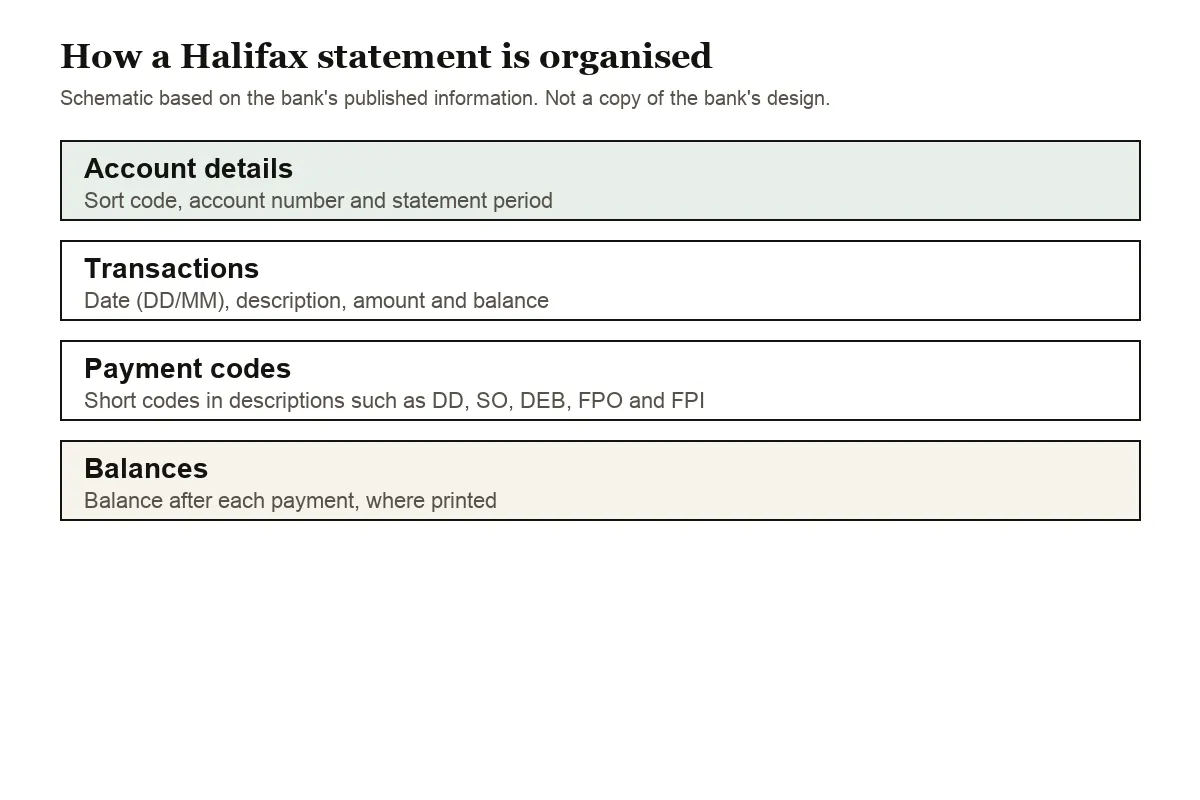
The top of the statement identifies the account, with your sort code and account number, and gives the period it covers. Below that, each transaction line has a date, a description and an amount, and most statements also print the balance after it. UK statements put the day first, so 07/08 is 7 August. Rows without a year get it from the statement period.
Some entries appear as short payment codes rather than full words. Halifax publishes a list of them. The ones you'll see most often are:
- DD: Direct Debit
- SO: standing order
- DEB: debit card payment
- FPO: faster payment out
- FPI: faster payment in
The converter keeps these codes in the description exactly as printed. In Excel that makes them easy to work with: filter on "DD" to list every Direct Debit, or on "FPI" to see money that arrived by faster payment, such as transfers from friends or clients.
Amounts may sit in one column with minus signs or in separate money out and money in columns. Either way, you get one amount column in the spreadsheet with money out as negative numbers.
When a Halifax PDF needs checking
A running balance that doesn't add up
The converter adds each Halifax payment to the balance before it and compares the result with the balance Halifax printed. Where the two differ, you'll see a ⚠ on that row. Open it beside the PDF to find the cause, which is usually a misread figure, a missing page or a file edited after download. Fetch the statement again from Statement options or the app if the file itself is at fault.
Descriptions on two lines
A faster payment with a long reference can take up two lines on a Halifax statement. The second line is added to the first, so the payment stays a single row.
Protected files
A PDF that's locked with a password can still be converted: type the password when prompted. It's used to open the file once and isn't saved.
Paper statements
Halifax sends ordered paper statements within 10 working days. A scan of one is read with text recognition, which is less exact than a downloaded PDF, so check the totals against the paper.
A Halifax payment you don't recognise
If a line on the converted statement looks wrong, check it against the original PDF first, then follow the steps in the Halifax help centre to raise it with the bank.
Halifax data in QuickBooks, Xero or Google Sheets
- Google Sheets: open File, then Import, then Upload, and choose the CSV.
- Xero: bring in the CSV or OFX file as a bank statement, using our Xero guide.
- QuickBooks: upload the CSV, or a QBO file on a paid plan, as set out in our QuickBooks guide.
Make sure your software reads dates as DD/MM/YYYY; if it expects month first, 07/08 becomes 8 July. Try a single month first, then import the rest.
Your Halifax statements, the Lloyds move and data safety
When you upload, the PDF is encrypted on its way to us and used only for your conversion. We don't share it. Anything uploaded without an account is deleted after 24 hours; free accounts keep files for 7 days, and you can turn on auto-delete or remove a file at any point. Details are on our security page.
With the move to Lloyds online banking coming, save copies of the statements you need now. GOV.UK has HMRC's guidance on keeping pay and tax records.
Halifax's yearly Statement of Fees
Halifax sends a Statement of Fees once a year for a current account. It gives an overview of the fees and interest on the account for the period it covers, broken down by type of fee. Halifax also sends one when you switch to a different current account or close the account. It's the quickest way to see what the account cost you in a year; with a year of statements in a spreadsheet, you can check it against your own fee rows.
Mortgage customers can also order a certificate of the interest charged over the April to April tax year; our guide to statements at tax time explains how to use interest records like this.
Paper-free statements, closed accounts and the move to Lloyds
Where paper-free statements go
Once you go paper-free, current account and savings statements arrive in your Digital Inbox, and Halifax emails you when something new lands. Credit card and personal loan statements are on the account's statement page instead. Documents in the Digital Inbox can't be deleted, but you can move them to an archive. To go back to paper, use Manage Online and Paper Preferences in Online Banking or call the Online Banking Helpdesk on 0345 602 0000. Halifax's paper-free terms say it still writes by post about interest or overdraft charges unless you've agreed to receive those online.
Statements for a closed account
Halifax can provide copy statements, meaning your transaction history, for five years after an account closes. If you still have an online login through another open Halifax account, you can view electronic copies in your Digital Inbox. Otherwise you'll get paper, which Halifax says could run to 60 pages for five years. Its paper-free terms advise saving or printing statements before you close, because online access ends with the account, and a closed account can't be reopened.
Moving to Lloyds
Halifax's brand change FAQs say all your accounts move to Lloyds with their statements and account history. Halifax is sending invitations in stages through its app, with email reminders. Paperless documents should appear in your Lloyds digital inbox once you've moved. The catch is timing: if the Halifax app closes before you move, you lose access to your paperless communications. Customers who don't move keep branch and phone banking but lose digital access. Download the PDFs you rely on before switching, so the dates and balances you've already converted match a file you hold.
Asked about Halifax statements
How far back can I download Halifax statements?
7 years in Online Banking and at least 10 years in the app. For a paper copy, order one through Statement options; it arrives within 10 working days.
Can I download a Halifax statement in Excel or CSV?
Halifax's help pages describe PDF statements, not a spreadsheet export. Converting the PDF gives you Excel or CSV that matches the statement row for row.
What do FPI and FPO mean on a Halifax statement?
FPI is a faster payment in and FPO a faster payment out. DD is a Direct Debit, SO a standing order and DEB a debit card payment.
How do I get a Halifax credit card statement as a PDF?
Through the Halifax app, or by asking in chat. Once you have the PDF, you can convert it the same way as a current account statement.
Is Halifax changing to Lloyds?
Halifax's help pages say the brand is changing to Lloyds and customers will move to the Lloyds app and online banking. Menu names in this guide may change after the move.
Why does the Halifax app show more statements than Online Banking?
Halifax gives you 7 years of statements online and at least 10 years in the app. For anything 8 to 10 years old, download it from the app.
Lloyds and other UK bank guides
See the guides for Lloyds statement to Excel, Barclays statement to Excel, HSBC statement to Excel, NatWest statement to Excel, Santander UK statement to Excel and Nationwide statement to Excel, or browse all supported banks.
When your PDF is ready, open the bank statement converter (or the upload box at the top of this page) to turn your Halifax bank statement PDF to Excel. Halifax's own help page explains how to view or download statements.