
Wise lets you create a statement as an XLSX (Excel) file on its website and in the app, so for your own account the quickest way to convert a Wise statement to Excel is to choose XLSX when you build it. A converter helps when you only have the PDF: the stamped copy you gave a landlord, a statement a client or relative sent you, or files saved before an account closed. You get the same rows in Excel or CSV, with each printed balance checked.
Quick answer: On Wise, tap your initials, then Statements and reports, Statements and Create a statement. Pick the currencies or jars, up to 365 days and XLSX. Holding a PDF instead? Upload it, check the rows and download Excel or CSV, free for 3 pages a day.
On this page
- How to convert a Wise statement to Excel
- Working through each Wise step
- Wise's own XLSX and CSV, or a converted PDF?
- Statement or transaction history: two different Wise files
- Reading a Wise statement PDF
- Wise PDFs that need a second look
- Fees, stamps and proof of account ownership
- Older statements and closed Wise accounts
- Wise data in QuickBooks, Xero or Google Sheets
- Is it safe to upload a Wise statement?
- Wise statement questions
- Other UK bank guides
How to convert a Wise statement to Excel
- Create the statement: your initials → Statements and reports → Statements → Create a statement. Choose currencies or jars, a period of up to 365 days, a file format and a language.
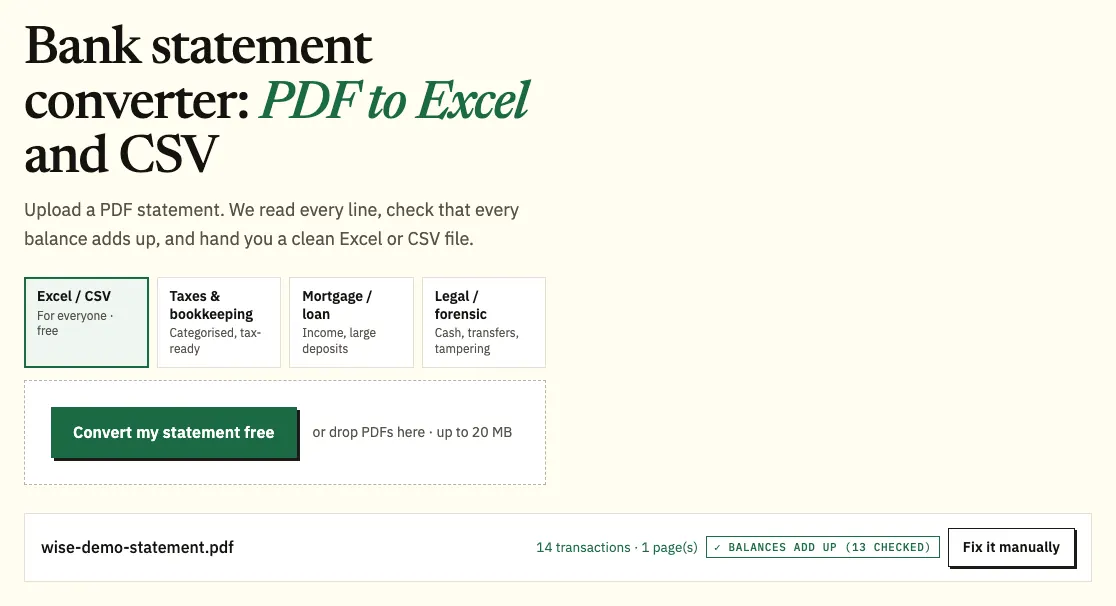
- Saved it as a PDF, or received one? Upload it here. You'll find the same tool as the bank statement converter (or the upload box at the top of this page).
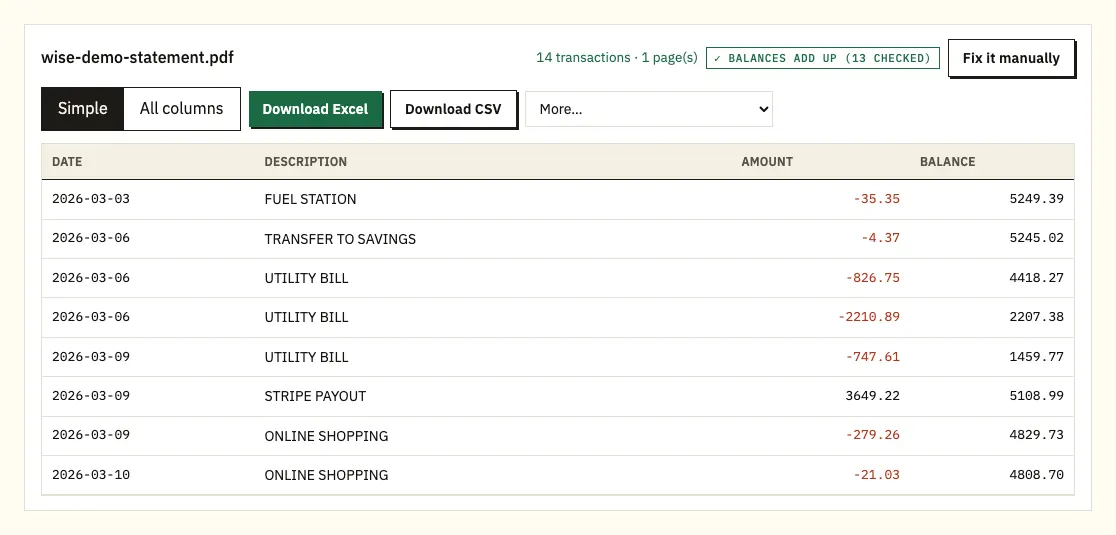
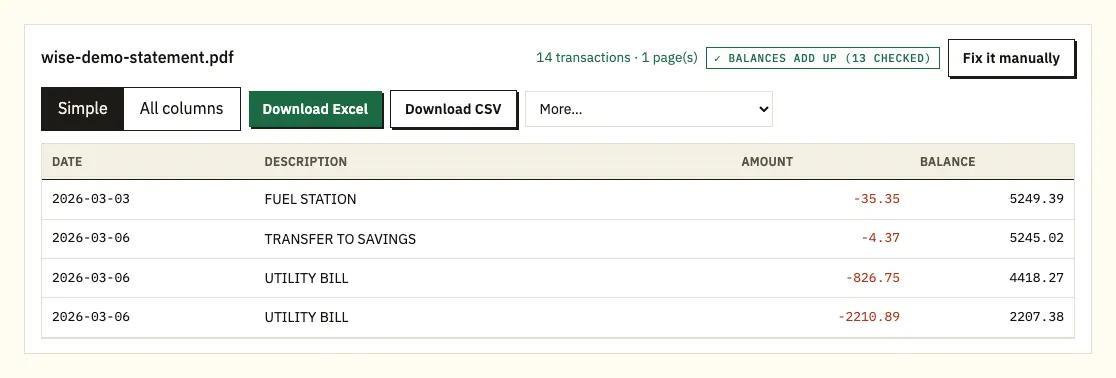
- Go through the preview. Rows whose printed balance doesn't follow from the line above carry a ⚠.
- Download Excel (.xlsx) or CSV.
Working through each Wise step
Starting from one currency
There's a second route if you only need one balance. Open the currency or jar, tap the three dots at the top right, choose Statements and reports and pick the document type. Wise asks for your Wise password to confirm. Statements you build with Create a statement are kept in the Custom tab, so you can download them again without starting over.
The 365-day limit
Each Wise statement covers 365 days at most. For a longer stretch, such as two tax years, create one statement per year. Upload the PDFs together and the converter returns one spreadsheet with a column showing which file each row came from.
Several currencies at once
On the website and on Android you can tick several currencies and jars in one go. Depending on the size, Wise either downloads a zip file straight away or emails you a link. Unzip it first and upload the PDFs inside.
Picking the output
Choose Excel to sort and check figures by hand, or CSV for accounting software. Paid plans also offer QuickBooks (.qbo), OFX and QIF under More, as listed on our pricing page. Guests convert 3 pages a day for free, and free accounts 15.
Wise's own XLSX and CSV, or a converted PDF?
Use Wise's export whenever you can log in. The formats depend on where you are:
- Website: PDF, XLSX, CSV, MT940, QIF or CAMT.053 (version 10 only).
- App: PDF, CSV or XLSX.
Wise calls MT940, CAMT.053 and QIF accounting exports, built to load into accounting software without manual edits. For an accounting statement you can also tick a box to show fees separately.
| Wise statement export | Wise PDF, converted | |
|---|---|---|
| What you need | Your Wise login | The PDF only |
| Formats | XLSX, CSV, PDF; MT940, QIF, CAMT.053 on the website | Excel and CSV; QBO, OFX, QIF on paid plans |
| Period | Up to 365 days per statement | Whatever each PDF covers |
| Several currencies | Zip file or emailed link | Several PDFs into one spreadsheet |
| Balances checked | No | Each printed balance |
Statement or transaction history: two different Wise files
Wise produces two kinds of download, and they don't hold the same rows. A statement covers transactions made through your Wise currency accounts, including hidden activities. Anything paid with an outside payment method, such as a transfer you funded from your high street bank, is left out.
The transaction history, on the Transactions page, includes those external payments. It's available on the website only, not in the app. Use Filters or the search bar to narrow the list by date, recipient, type, status, direction, currency or jar, card or category, then select Export and choose CSV or PDF. The export matches your current view and covers up to 365 days.
The difference matters for bookkeeping. If you need proof of what went in and out of a balance, use the statement. If you need every transfer you sent through Wise, whatever paid for it, use the transaction history.
Wise Business accounts can add receipts and invoices to that export: turn on Include attachments after selecting Export. Wise emails the person who asked for it when the zip file is ready; the link lasts 7 days and the file is capped at 2GB, so filter a smaller set if yours is larger.
Reading a Wise statement PDF
Wise's help pages describe how to create statements but not their layout, so this diagram is our general sketch. Check the headings on your own PDF before you rely on a column.
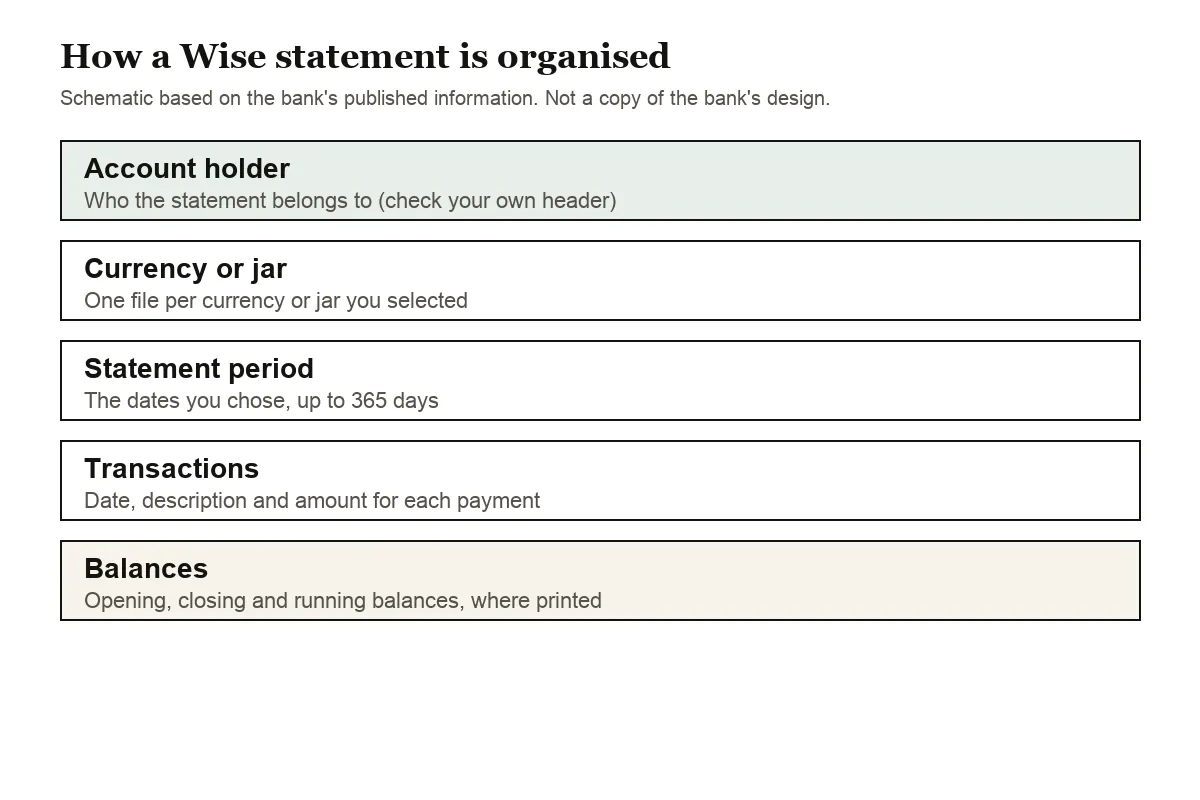
Expect the account holder and the currency or jar at the top, then the period you picked, the transactions with dates, descriptions and amounts, and balances where the statement prints them. A multi-currency download gives you one file per currency or jar, so each PDF has its own opening and closing figures.
Fees are where Wise differs from a high street bank. The standard statement doesn't break fees out on their own; Wise offers a separate Statement of fees, and the fees-shown-separately option on accounting statements. If you're reconciling, decide which of those you'll use before you build a spreadsheet, or you may count a fee twice.
The converter reads amounts in one signed column or in separate money in and money out columns and gives you one amount column with money out negative. UK dates put the day first, so 06/09 means 6 September.
Wise PDFs that need a second look
A running balance that breaks
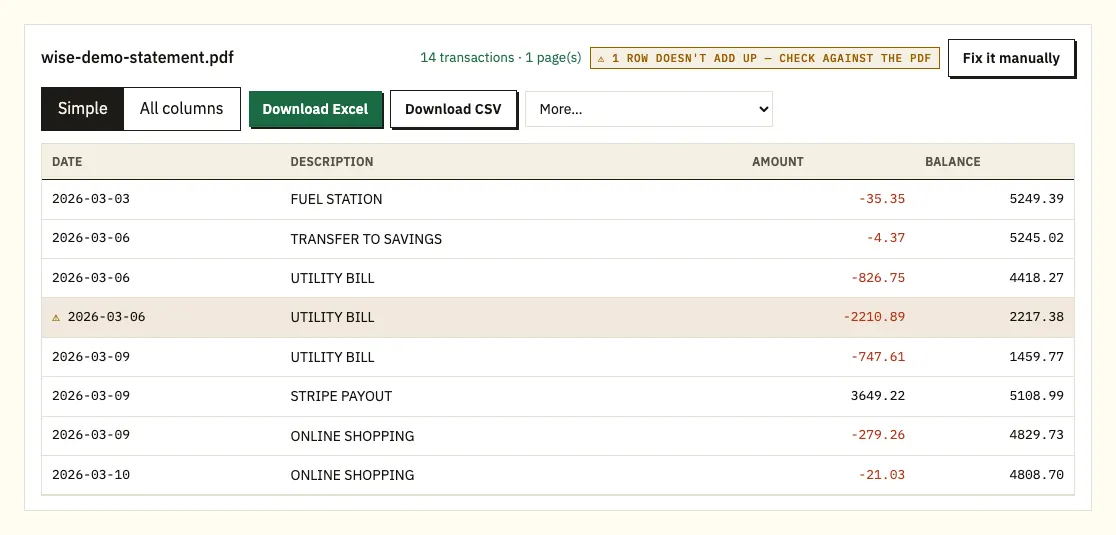
When a printed balance doesn't equal the previous one with the row's amount applied, the converter marks the row with ⚠. Select it to see that line on the PDF. Typical causes are a missing page, a misread figure or a file edited after Wise produced it. If you can still log in, create the statement again for the same dates.
Conversions between balances
Moving money from pounds to euros shows on both currency statements, once leaving and once arriving. Mark those rows in the spreadsheet so a conversion isn't counted as spending in one currency and income in the other.
Stamped and password-protected files
A statement with Wise's stamp and signature converts like any other PDF. If a file asks for a password, the converter requests it, uses it once and doesn't store it.
Long references
Transfer references can wrap onto a second line. The converter joins them to the right transaction instead of leaving half-empty rows.
Fees, stamps and proof of account ownership
Three other documents sit in the same Statements and reports menu.
- Statement of fees: open your profile, then Statements and reports, then Statement of Fees, and choose a year. It totals your fees per year, grouped by currency, back to when you opened the account, and leaves out gains and losses from Assets. Wise says it isn't available to US-based customers.
- Stamped statements: tick Stamp and sign this document at the bottom of the statements screen. Wise may need to verify your address first if it hasn't before.
- Proof of account ownership: select the currency, tap the three dots, choose Get proof of account ownership and Download. It's also in Statements and reports, and at the bottom of the currency's account details.
Lenders and letting agents usually want the stamped PDF itself, not a spreadsheet. Send them that and keep the converted file for your own checks.
Older statements and closed Wise accounts
Wise's statement help page doesn't say how far back you can go, only that each statement covers up to 365 days. The safe habit is to create and save one statement per year while the account is open.
If Wise is closing your account, it asks you to move any remaining money out and download the statements you need before the closure date. Afterwards you can't sign in to get them; you have to contact Wise using the email address given in its closure message. If you saved PDFs before then, they convert as normal.
Wise data in QuickBooks, Xero or Google Sheets
- QuickBooks: import the CSV, or the .qbo file from a paid plan. See QuickBooks import steps.
- Xero: load the CSV, or OFX from a paid plan, as a bank statement. Our Xero guide walks through it.
- Google Sheets: File, Import, Upload, and pick the CSV.
Set up one bank account per Wise currency in your software, and import a single month first to make sure the day-first dates land correctly.
Is it safe to upload a Wise statement?
Uploads go over HTTPS and are used only for your conversion; nobody else receives them. Guest files are deleted after 24 hours, and a free account keeps them for 7 days, with auto-delete and a delete button. Our security page explains more.
Keep your original Wise PDFs too. GOV.UK sets out which pay and tax records to keep, and our tax-time statement guide covers totalling a year of transactions.
Wise statement questions
Can I download a Wise statement in Excel?
Yes. Pick XLSX when you create a statement on the website or in the app. CSV and PDF are offered in both places.
How many months can one Wise statement cover?
Up to 365 days. For longer periods Wise asks you to download several statements, each within that limit.
Why are some transfers missing from my Wise statement?
Statements only include transactions made through your Wise currency accounts. Transfers paid with an outside method appear in the transaction history export on the website.
Can I export Wise transactions from the app?
Statements, yes, as PDF, CSV or XLSX. The transaction history export is website only.
Where do I find the fees I've paid to Wise?
Use Statement of fees under Statements and reports, which totals fees per year by currency. It isn't offered to US-based customers.
Can I get a stamped Wise statement?
Yes. Tick Stamp and sign this document before you download. Wise may ask to verify your address first.
Other UK bank guides
For accounts elsewhere, see Monzo, Barclays, HSBC, Santander UK, Lloyds and NatWest, or browse every bank we cover.
Wise's help article explains how to download a statement. For PDFs, our bank statement converter will convert a Wise statement to Excel or CSV with every balance checked.